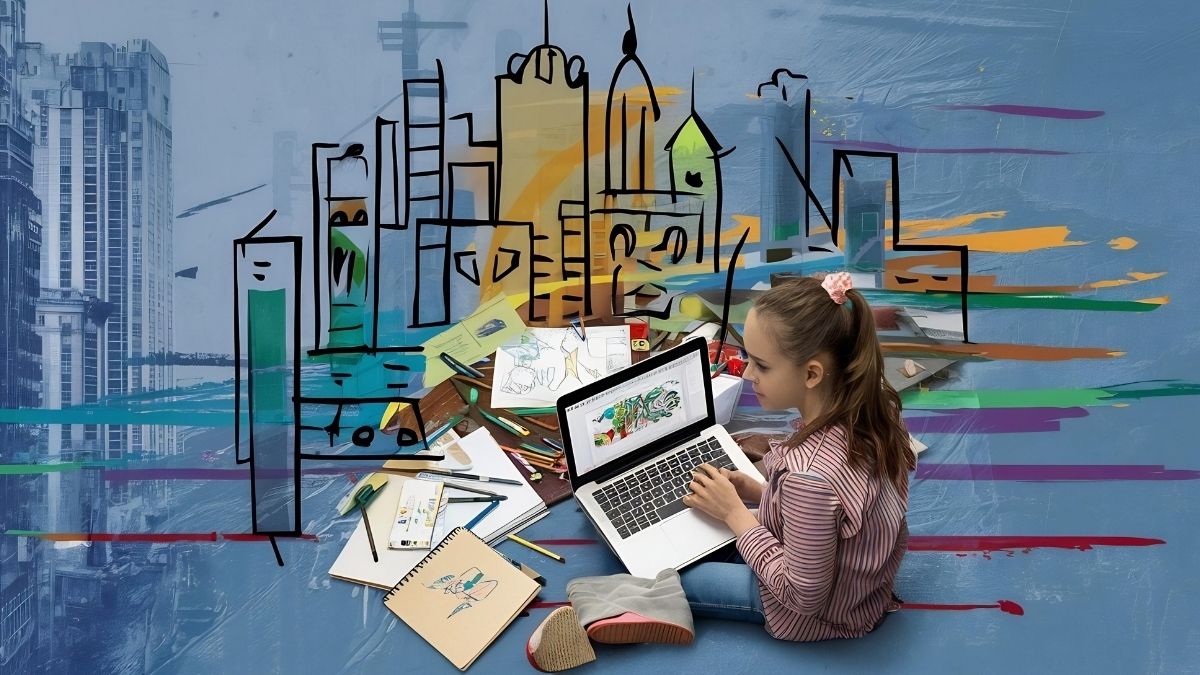
Many students struggle with making their school presentations visually appealing and easy to follow, which often affects the clarity and impact of their work. This issue is not uncommon among educators who notice that students can have strong ideas but lack the skills to present them effectively. For schools and afterschool programs aiming to build digital literacy, the challenge extends to finding accessible, kid-friendly design tools and teaching methods that foster visual communication skills. Tools like Canva have gained attention in educational contexts, but understanding how to integrate them meaningfully remains a hurdle.
Clarity in presenting ideas is essential for young learners to develop confidence and critical thinking skills. From my experience working with children, I think that teaching them how to use design tools like Canva offers a practical entry point into digital literacy and creativity. Rather than focusing solely on the technical features, it helps to approach such tools as platforms for storytelling and visual thinking that support school projects. This article explores common challenges in school presentations, why they persist, practical guidance on using Canva, and how professional support can enhance learning outcomes.
Key Points Worth Understanding
- Students often face difficulties in organizing content visually to communicate ideas clearly.
- Many teachers lack training or resources to guide children in digital design tools effectively.
- Simple, hands-on steps can help children use Canva without feeling overwhelmed by options.
- Visual design skills develop through practice, collaboration, and constructive feedback.
- Professional guidance enhances both the teaching process and learners’ engagement with digital tools.
What kind of challenges do students and educators face with visual school projects?
Students frequently encounter obstacles when required to turn their research or ideas into engaging presentations. These challenges include difficulty in selecting and sequencing information, choosing appropriate visuals, and maintaining audience attention. Teachers and educators observe that while students may be comfortable with content, expressing it visually is a different skill set, often underdeveloped. Such issues influence not only the quality of presentations but also students’ ability to build communication and digital literacy competencies.
Why is organizing visual content a persistent problem?
Many students have trouble deciding what information to highlight and how to balance text and images. With limited experience, they may either overwhelm slides with too much text or leave them too sparse, missing key points. This happens partly because organizing ideas visually requires planning and an understanding of design principles like hierarchy and emphasis. Without structured guidance or practice, students revert to writing dense paragraphs or copying text without considering audience engagement.
In schools, curriculum pressures often leave little time for in-depth instruction on presentation design. Educators may recognize the need but lack the tools or training to provide focused lessons on visual communication. As a result, instruction tends to focus more on content accuracy than presentation skills. This gap sustains frustration among both students and teachers and limits opportunities for skill development in newer digital environments.
What barriers affect learning digital design tools like Canva?
While Canva and similar platforms are made to be user-friendly, initial encounters can feel overwhelming to young learners. The abundance of templates, fonts, graphics, and animation options may distract students from the core task of communicating ideas. Without introduction tailored to age and experience, children might spend more time exploring tool features than organizing their content. Additionally, educators may hesitate to incorporate such tools fully if they themselves are not confident in using them.
Access to devices and internet connectivity can also restrict regular practice with digital platforms in some schools or homes. This uneven access contributes to persistent skill gaps. Furthermore, when digital tools are introduced without connection to project goals or explicit instructions, learners struggle to see their practical value. These factors contribute to reluctance or superficial use in educational settings.
How do students’ age and experience affect visual presentation skills?
Younger students usually start with basic storyboarding or arranging pictures to tell a story before progressing to text-heavy slides. Older students face increased expectations to combine text, visuals, and sometimes multimedia effectively. Experience with digital tools and feedback from teachers or peers influences how confidently students experiment with design elements. Gradual learning, supported by guided practice, helps build visual literacy and technical skills over time.
Educators notice that students who receive regular opportunities to present and revise their work grow more adept at design decisions. They learn to anticipate audience needs, select impactful visuals, and maintain clarity. The repeated cycle of creation, feedback, and refinement is crucial. Without it, students may retain a preference for text-heavy, uninspired slides that do not fully represent their ideas.
Why do these visual communication problems continue to affect school projects?
In many educational settings, training on digital presentation tools is brief or optional, which limits teacher confidence and expertise. When instructors themselves have limited knowledge of platforms like Canva, they may feel unable to provide meaningful support beyond basic instructions. This gap contributes to a cycle where students learn shallow digital skills rather than developing a thoughtful design mindset. In this way, the challenge is both technical and pedagogical.
What role do curriculum priorities play?
Schools often prioritize core academic subjects and standardized testing, which can reduce time available for creative or digital skills education. This leaves presentation skills as secondary despite their relevance across subjects. Consequently, educators may treat presentation design as an add-on or homework task rather than an integrated learning objective. This fragmented approach lessens impact on student skill development in design thinking and digital literacy.
The pressures of curriculum meeting standards also discourage teachers from experimenting with new tools or methods. Risk-averse environments limit conditions needed for effective skill-building. Without institutional encouragement, using tools like Canva with intention becomes challenging, causing persistent gaps. This structural factor underlines why visual presentation problems have not diminished more noticeably.
How does teacher proficiency influence student outcomes?
An educator’s familiarity with design software directly affects how they model its use for students. Teachers comfortable with Canva and similar platforms tend to provide more tailored support, templates, and examples that scaffold learning. In contrast, educators uncertain about features may provide unclear or minimal guidance, leading to student frustration. Professional development opportunities that boost teacher skills can therefore translate into better student results.
Based on what I observe in learning environments, effective teacher coaching on digital tools combines technical instruction with strategies to connect design choices to project goals. This helps teachers move beyond tool mechanics to encourage visual literacy. Without this dual focus, teaching remains at the surface level, limiting student engagement and growth.
How do access and equity affect digital presentation learning?
Unequal access to technology at school or home means some students have fewer chances to practice creating digital presentations regularly. This affects skill acquisition and confidence. An uneven playing field often results in students relying on basic or outdated methods instead of exploring richer design options. Such inequities limit the overall development of digital literacy important for the modern world.
Addressing access challenges requires school policies that provide devices and internet as well as inclusive lesson planning. When learning platforms like Canva are integrated thoughtfully, they can help bridge gaps by offering versatile, relatively low-bandwidth options in different contexts. However, persistent disparities still contribute to ongoing challenges with student digital presentation capabilities.
What does practical support for using Canva in school projects look like?
The most effective assistance situates Canva use within clear project goals and step-by-step guidance tailored to children’s learning stages. A scaffolded approach breaks down design tasks into manageable activities, such as choosing a template, adding text, selecting images, and arranging elements logically. Tutorials that use simple language and visual examples help students navigate options without losing focus.
How can teachers introduce Canva to young learners?
Starting with a brief hands-on demonstration of basic features allows children to explore without pressure. Teachers can select a few templates aligned with project themes and guide students in customizing these. An introduction focused on key tools—such as dragging elements, editing text, and inserting images—sets a solid foundation. Sample projects and checkpoints encourage students to reflect on design choices early.
This methodical introduction contrasts with open-ended instruction, which overwhelms beginners. For example, a third grade class working on a presentation about a favorite animal might begin by choosing a bright template, adding short facts as bullet points, and inserting pictures. Teachers facilitating this ensure students see how each step adds to message clarity and appeal.
What role does collaboration play during the design process?
Group work or peer review sessions encourage students to share ideas, give and receive feedback, and refine presentations collaboratively. This social dimension reinforces understanding of visual communication principles and increases engagement. When students discuss why one slide works better than another or suggest clearer layouts, they exercise critical thinking beyond software use.
For example, a small group preparing a history report may rotate roles such as designer, editor, and presenter, each contributing unique perspectives. Peer critique sessions guided by teachers focusing on positive, constructive remarks create a supportive learning atmosphere. Incorporating feedback loops helps students improve and value design standards alongside content.
How do project-based learning methods enhance Canva skills?
Embedding Canva use within authentic projects allows children to connect learning with real-world tasks. Project-based learning emphasizes process and reflection, which supports deeper skill acquisition. When students see their work as meaningful, they are more motivated to invest effort in crafting effective presentations, experimenting with design choices, and applying feedback.
For instance, an afterschool program that has students create presentations on local community topics integrates research, writing, design, and public speaking. Using Canva to develop polished visuals becomes part of a broader learning cycle. This integrated approach contrasts with one-off technology lessons and leads to more lasting competence.
What steps can parents, educators, and program coordinators take now?
Getting started with Canva for school projects need not be complicated. Begin by familiarizing yourself with its interface and basic functions to comfortably guide children through early tasks. Encourage children to explore templates relevant to their topics and experiment with adding text and images thoughtfully. Aim for simplicity and clarity rather than complex effects that may detract from message focus.
How can parents support at home without being overwhelmed?
Parents can help by setting aside time for their child to practice using Canva with a defined project in mind, such as a book report or hobby presentation. Showing interest and asking questions about design decisions fosters reflection and language about visuals. Keeping sessions short and purposeful avoids frustration for both parties. Sharing examples of clear, well-organized slides from online sources can also inspire ideas.
It can be helpful for parents to focus on the content and flow of ideas more than tool mastery. Encouraging neat layouts, readable fonts, and relevant images reinforces effective communication. This balanced attention supports digital literacy beyond mere technical skills.
What resources can educators use to integrate Canva lessons?
Many online tutorials and lesson plans specifically designed for children and teachers are available to structure learning experiences. Choosing materials that align with grade level and curriculum themes ensures relevance and engagement. When possible, combining direct instruction with hands-on practice during class time maximizes skill development.
Professional development workshops or peer sharing sessions help educators build confidence in using Canva themselves. Collaboration among teachers can lead to sharing templates, best practices, and troubleshooting tips. Starting small with one project before expanding keeps the focus on learning outcomes.
What practical considerations do program coordinators need to address?
Ensuring all participants have access to devices and the internet is a baseline requirement for digital design activities. Program coordinators should also plan for skill levels that vary widely among children and provide differentiated support. Developing a clear sequence of activities and milestones helps monitor progress and maintain engagement.
Providing templates, example projects, and evaluation criteria can guide learning without restricting creativity. Coordinators might invite guest instructors familiar with graphic design software or arrange field visits to design studios for contextual inspiration. Structuring reflection sessions encourages learners to articulate design choices and challenges encountered.

How can professional guidance improve the learning experience with Canva?
Engaging a skilled instructor or coach can transform the way children and educators approach digital design. Professionals bring experience in breaking down software complexity and connecting tool use to communication goals. They can model effective practices, assess learners’ needs, and provide tailored feedback. Such support often leads to greater confidence, creativity, and skill retention.
Why does guided instruction matter more than self-taught exploration?
Independent experimentation can be valuable but risks confusion or inefficient learning if foundational concepts are unclear. Guided instruction helps learners focus on important design principles and avoids common pitfalls like clutter or unreadable text. An expert instructor can scaffold challenges appropriately and encourage reflection on design effectiveness, improving both technical skills and cognitive understanding.
For example, small-group workshops where children present draft slides and receive constructive critique help link theory with practice. This structured environment contrasts with unguided use where students may adopt ineffective habits undetected.
What specialized support can benefit educators?
Professional development that includes hands-on training with Canva and pedagogical strategies helps teachers integrate digital literacy goals into their existing curriculum. Support may cover lesson planning, assessment methods, and using Canva features to differentiate instruction. Access to a community of practice allows educators to share insights and remain updated on digital tools relevant to their students.
This ongoing guidance reduces the anxiety some teachers feel toward technology and enriches classroom practice. Experienced instructors can also advise on how to incorporate collaborative work and project-based learning effectively alongside Canva use.
How does collaboration with design professionals expand learning?
Inviting architects, graphic designers, or digital media specialists to interact with students exposes them to professional perspectives on design and presentation skills. These collaborations can include live demonstrations, Q&A sessions, or project mentorship. Students benefit from seeing practical applications and standards beyond the classroom context.
When children understand how design choices influence communication in real-world settings, they gain motivation and clearer purpose. Professional input can also enrich afterschool programs by connecting creative software use with broader career interests and skills development.
To discover more about effective child-centered learning approaches, consider exploring project-based strategies that connect creativity and critical thinking in educational settings through resources on active learning methods for homeschooling. For insights on fostering social skills through group activities combined with design projects, see our discussion on collaborative learning in creative contexts. If you want tailored advice or support for implementing digital tools and architecture education at your school or program, please reach out via our contact page for direct guidance.
Frequently Asked Questions
How can children with no design experience start using Canva?
Begin with simple templates and focus on one aspect of a presentation at a time, such as inserting images or editing text. Step-by-step tutorials that emphasize key functions reduce overwhelm. Encouraging experimentation alongside guided practice helps children build familiarity progressively.
What age group is Canva appropriate for in school projects?
Canva can be adapted for a wide range of ages, starting around late elementary school when children have basic reading and computer skills. Younger children benefit from simplified tasks and guided use, while older students can explore advanced features within project requirements.
Are there free resources to learn Canva for educational purposes?
Yes, Canva provides free educational accounts with access to many templates and design elements. Additionally, numerous online tutorials and lesson plans designed for classroom use are also available at no cost, tailored by grade level and subject area.
How can teachers assess digital presentations made with Canva?
Assessment criteria often include clarity of message, organization, visual appeal, creativity, and relevance of content. Teachers can use rubrics that balance design and subject knowledge to provide constructive feedback and encourage iterative improvement.
What are some common mistakes to avoid when using Canva for school projects?
Common errors include overcrowding slides with too much text or images, inconsistent fonts and colors, and neglecting the flow of information. Teaching students to prioritize simplicity and audience understanding helps avoid these pitfalls and results in more effective presentations.